Reading files & CSV
When your values already live in a file — a list your team maintains, an export, a
spreadsheet saved as CSV — read them with the file
generator instead of pasting them into the config. This guide walks the common CSV
workflow end to end: a plain list, a single column, the right delimiter, and keeping a
record whole. Every attribute is documented in exhaustive detail on the
File generator page; this page sticks to the job at hand.
Example outputs are illustrative — the exact values are random and can differ from one core version to the next. What matters is the shape of each step and the counts.
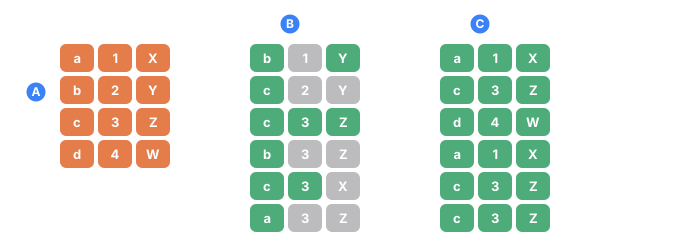
- Athe source file: four lines, three columns
- Bwithout row=, every field picks its own line, so the record is assembled from pieces that never belonged together (the gray cells)
- Cwith row=, all three fields read the same line, so every record is a real line of the file
Set-up: the data folder
Every example below reads from a data/ folder that sits next to the config and is
passed at run time with --data-path. Two files live there — a plain list and a CSV.
data/cities.txt (one value per line):
Chicago
Austin
Denver
Boston
Seattle
data/users.csv (a header row, then records):
first_name,last_name,email,city
John,Smith,john.smith@example.com,Austin
Mary,Johnson,mary.johnson@example.com,Denver
James,Williams,james.williams@example.com,Boston
Emma,Brown,emma.brown@example.com,Seattle
Run any config the same way:
./run example.tdc --data-path ./data
A plain list — one line, one value
Use it when you have a flat pool of values (cities, product names, tags) that's
awkward to hard-code into value="…". Point src at the
file and leave column off — each non-empty line becomes
one value:
<sequence name="City">
  <gen type="file" src="@data/cities.txt"/>
</sequence>
...
<data>${{City}}</data>
Denver
Chicago
Boston
Denver
Austin
Lines are chosen uniformly at random, repeats included (Denver came up twice). Empty
lines are skipped. For strict file order instead of random picks, add
order="sequential" — it emits the lines in exactly the order they appear in (see
Masks & case).
A CSV column — one field from a table
Use it when the file is a table and you want a single field — say only the email
addresses. Adding column is what switches the generator
from list mode into CSV mode: the header row is dropped and values come only from
that column.
By name
Name the column from the header line:
<gen type="file" src="@data/users.csv" column="email"/>
john.smith@example.com
james.williams@example.com
john.smith@example.com
mary.johnson@example.com
john.smith@example.com
The header (first_name,last_name,email,city) never appears in the output — TDC
recognizes it as a header and uses it only to find the column.
By number (1-based)
Address the column by position instead. column="2" is the second column
(last_name) — numbering starts at one, so the first column is column="1", never
column="0". When you address by number, TDC has no header name to match, so add
header="true" to drop the first line:
<gen type="file" src="@data/users.csv" column="2" header="true"/>
Johnson
Smith
Williams
Smith
Brown
The same file with column="3" reads the third column, email — the same data as
column="email", just addressed by position rather than by name.
Common mistakes
Off-by-one and delimiter slips fail loudly rather than silently, so they're easy to spot:
column="0"  ->  error[TDC062]: file generator: CSV column "0" was not found in the header row
column="9"  ->  error[TDC062]: file generator: CSV column "9" is past the last column — the file has 4
column="0"isn't a valid index (numbering starts at 1) — it's read as the literal column name0, which isn't in the header.- A number past the last column (
column="9"on a four-column file) has no cells to read. - If the file's separator isn't a comma, set the delimiter (below) — otherwise the whole line lands in a single cell and no column is ever found.
The delimiter — commas, semicolons, tabs
Use it when the export isn't comma-separated. Spreadsheets often save with a
semicolon or a tab. If you leave it unset, TDC splits on commas, finds no cells, and
treats the whole line as one field — so the column is never found. Set
delimiter to match the file. Here are the same users saved
with semicolons, as data/users_semicolon.csv:
first_name;last_name;email;city
John;Smith;john.smith@example.com;Austin
Mary;Johnson;mary.johnson@example.com;Denver
James;Williams;james.williams@example.com;Boston
Emma;Brown;emma.brown@example.com;Seattle
Without delimiter, TDC assumes a comma and can't find the email column:
error[TDC062]: file generator: CSV column "email" was not found in the header row
note: For CSV files, use a header name like column="email" or a 1-based index like column="2".
With delimiter="semicolon" (or delimiter=";") the cells split correctly:
<gen type="file" src="@data/users_semicolon.csv" column="email" delimiter="semicolon"/>
john.smith@example.com
james.williams@example.com
john.smith@example.com
mary.johnson@example.com
delimiter accepts a single character or a name alias — comma (the default),
semicolon, pipe, tab. For a tab-separated file (TSV), delimiter="tab" and
delimiter="\t" are equivalent. The full alias table is on the
File generator page.
Keep a record together — the row key
Use it when several fields have to come from the same CSV line. This is the
step people miss most often. Independent file generators
each pick their own line, so the record falls apart — the first name from one line, the
last name from another, the city from a third.
Without row — three independent generators, so records don't line up (Mary with
Smith's last name, James in the wrong city):
<sequence name="User">
  <gen name="First" type="file" src="@data/users.csv" column="first_name"/>
  <gen name="Last"  type="file" src="@data/users.csv" column="last_name"/>
  <gen name="City"  type="file" src="@data/users.csv" column="city"/>
</sequence>
...
<data>${{User.First}} ${{User.Last}} — ${{User.City}}</data>
Mary Smith — Denver
John Williams — Austin
Emma Brown — Boston
James Johnson — Seattle
John Brown — Austin
With a shared row="user" — every generator with that key reads the same chosen
line, and each column reads its own cell from it. The records hold together:
<sequence name="User">
  <gen name="First" type="file" src="@data/users.csv" column="first_name" row="user"/>
  <gen name="Last"  type="file" src="@data/users.csv" column="last_name"  row="user"/>
  <gen name="City"  type="file" src="@data/users.csv" column="city"       row="user"/>
</sequence>
Mary Johnson — Denver
James Williams — Boston
John Smith — Austin
John Smith — Austin
Emma Brown — Seattle
Now first_name, last_name, and city always come from the same CSV line — the
fields can't drift apart. The key can be any non-empty string (row="user"), and
generators link up when they share the same row, src, delimiter, and header mode.
This works on any engine (the default is streaming, so memory doesn't grow with the
number of rows).
Weighted rows — draw a line by frequency
Use it when the linked line should be picked by a real frequency rather than
uniformly — an item at its actual sales rate, with its own price and category coming
along for the ride. Add weight="column" to one field of the
group and the line is drawn by a weighted quota from that column (exact, like a
percent split), while the other fields still read from the
same chosen line. Say data/catalog.csv looks like this:
name,category,price,sales
Pen,Office,1.10,500
Coffee,Drinks,4.50,1200
Backpack,Bags,45.00,80
<sequence name="Item">
  <gen name="Name"  type="file" src="@data/catalog.csv" column="name"     row="i" weight="sales"/>
  <gen name="Price" type="file" src="@data/catalog.csv" column="price"    row="i"/>
  <gen name="Cat"   type="file" src="@data/catalog.csv" column="category" row="i"/>
</sequence>
...
<data>${{Item.Name}} | ${{Item.Cat}} | ${{Item.Price}}</data>
Coffee | Drinks | 4.50
Pen | Office | 1.10
Coffee | Drinks | 4.50
Coffee (sales 1200) comes up most often and Backpack (sales 80) rarely — and each item's price and category always match its own row.
Engine note. Without weight, a linked group runs on any engine. With
weight, the config always runs on the in-memory engine: a streaming engine can't
weight the line choice without knowing the file's totals first. If you force
--engine 2, TDC tells you so plainly instead of silently emitting incoherent columns.
See Coherent & relational data for the full picture.
Limitations (v1)
rowworks only inside a<sequence>. The output block has no generators, so the question never comes up there.rowrequirescolumn— it's a CSV feature, not something a plain text list can use.- The same
rowkey across different sources links them PROPORTIONALLY, not by line number. The key is one draw per row, and each file scales it to its own length — so an 8-line file at its line 8 pairs with a 4-line file at its line 4, and its line 2 pairs with line 1. Two files of the same length line up exactly; two of different lengths stay in step but not in lockstep. If you need line-for-line, put the columns in one file.
A file of measurements — read="quantile"
Everything above treats a file as a bag of values: pick one, put it in the cell.
That is right for something countable — a city, a status, a number of orders — and
weight= even honours the real shares.
It is wrong for a measurement. A thousand recorded transaction amounts, read as a bag, give a thousand distinct amounts however many rows you ask for: a million rows still hold those thousand values with nothing between them. Real money is not shaped like that, and a model trained on it learns a structure the data never had.
read="quantile" reads the same file the other way — sorted once, and treated as a
ruler that a row can land anywhere on:
<sequence name="Amount"><gen type="file" src="amounts.txt" read="quantile"/></sequence>
The shape of the sample comes back, the values between the observations appear on their
own, and the answer is written with as many decimal places as the file used. Add
sample="exact" to sweep the distribution instead of drawing from it, and the run
reproduces the sample with no sampling noise at all. Both are covered in full on the
File generator
page.
Writing CSV back out
Reading CSV is half the job — writing it safely is the other half. A value with a
comma or a quote in it would break the row. The csv filter wraps
a field the way RFC 4180 requires:
<data>${{Id}},${{Name | csv}},${{Category}}</data>
7,"Knife set, 3 pcs",Kitchen
2,"Coffee ""Arabica"" 250g",Grocery
The comma inside Knife set, 3 pcs no longer splits the row, and the inner quotes in
Coffee "Arabica" 250g are doubled. The csv and
sql escaping filters, and building whole CSV/JSON/SQL files,
are covered in Masks & case and
Output formats.
Where files are found
src="@data/…" is looked up in the folders passed with --data-path; a bare
src="names.txt" is looked up next to the config; absolute paths work too. Files
are read as UTF-8, and a path that doesn't resolve stops
rendering with an error instead of silently producing nothing. The full resolution
table is on the File generator page.
See also
- File generator — every attribute in exhaustive detail.
- Coherent & relational data — linking related fields and weighted rows.
- Masks & case — the
csv/sqlescaping filters andorder="sequential". - Output formats — building the CSV/JSON/SQL around your data.